Remap Insert Key
Open the menu even when your keyboard has no dedicated Insert key.
1. Install PowerToys
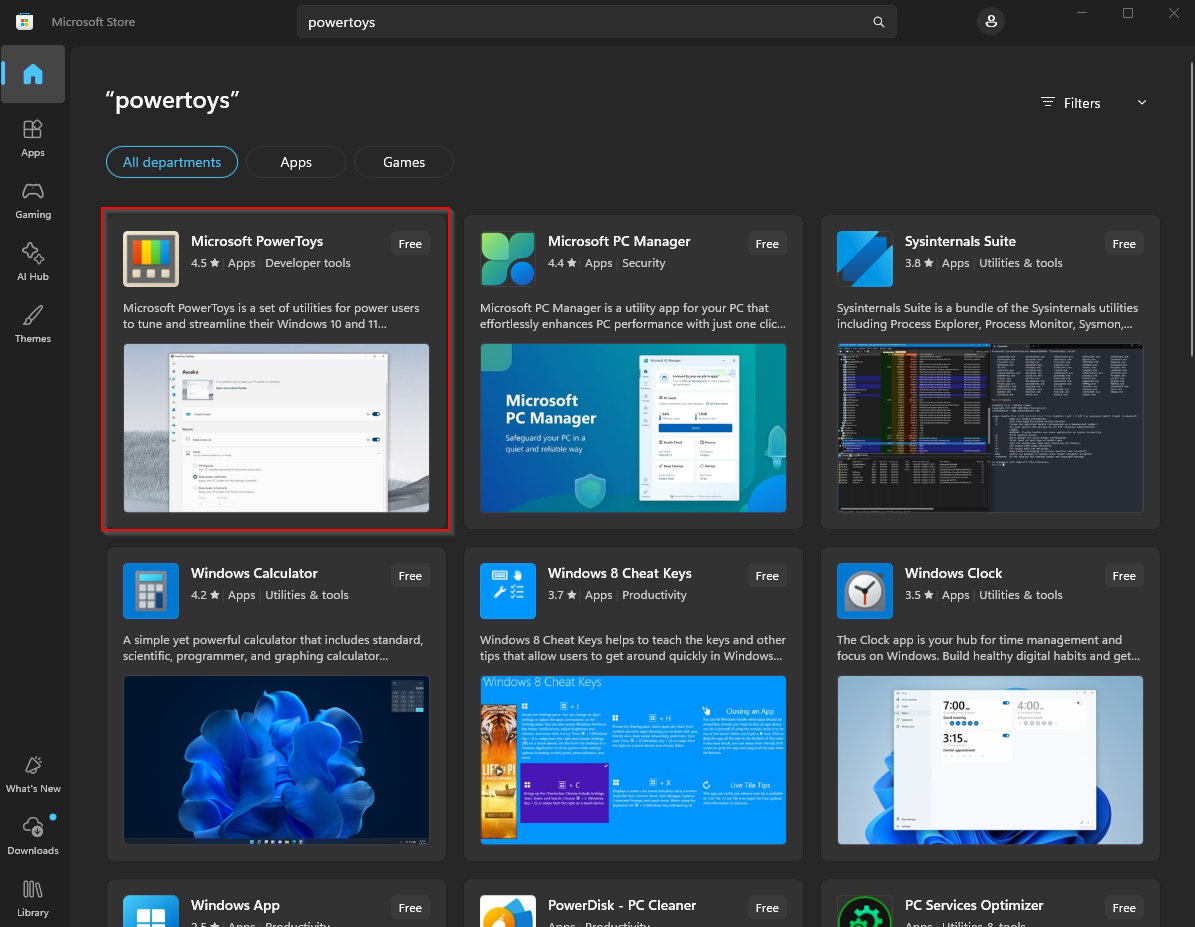
- Install Microsoft PowerToys from Microsoft Store and open it.
2. Choose your replacement key
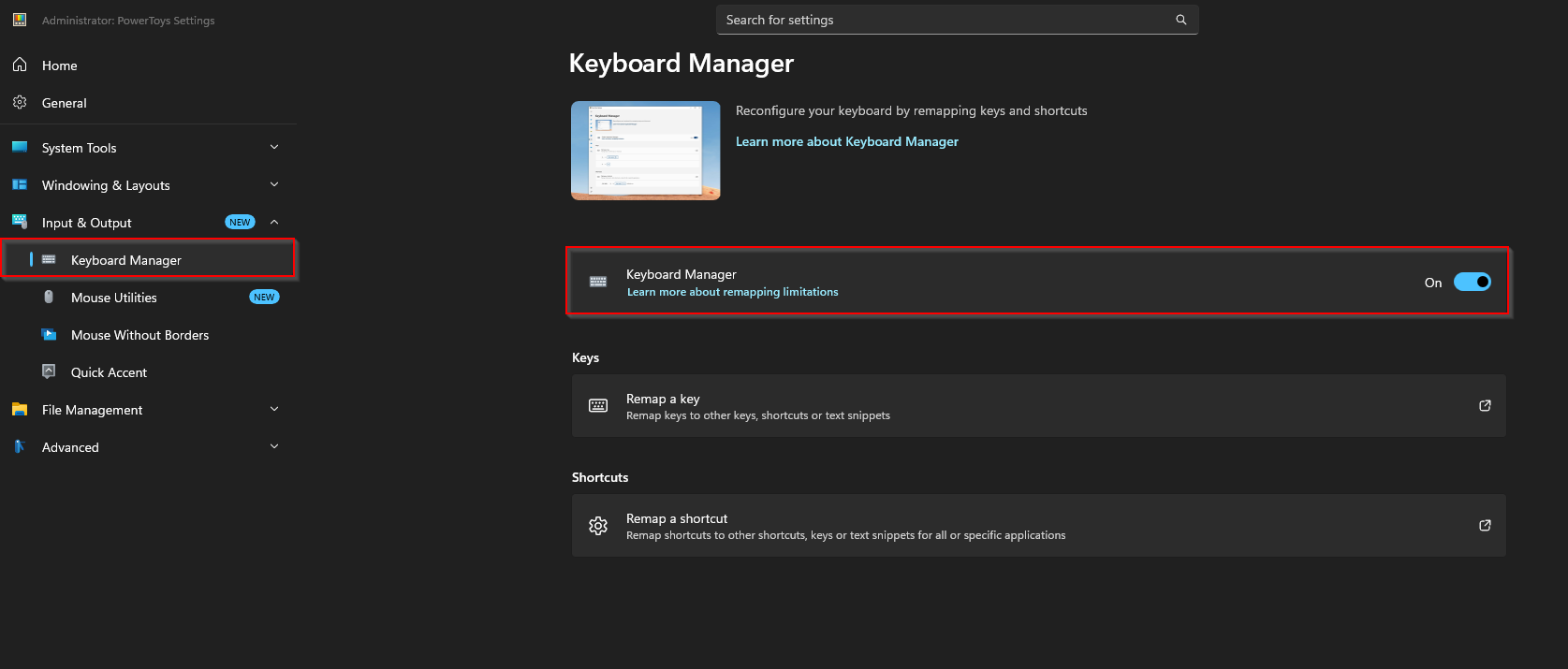
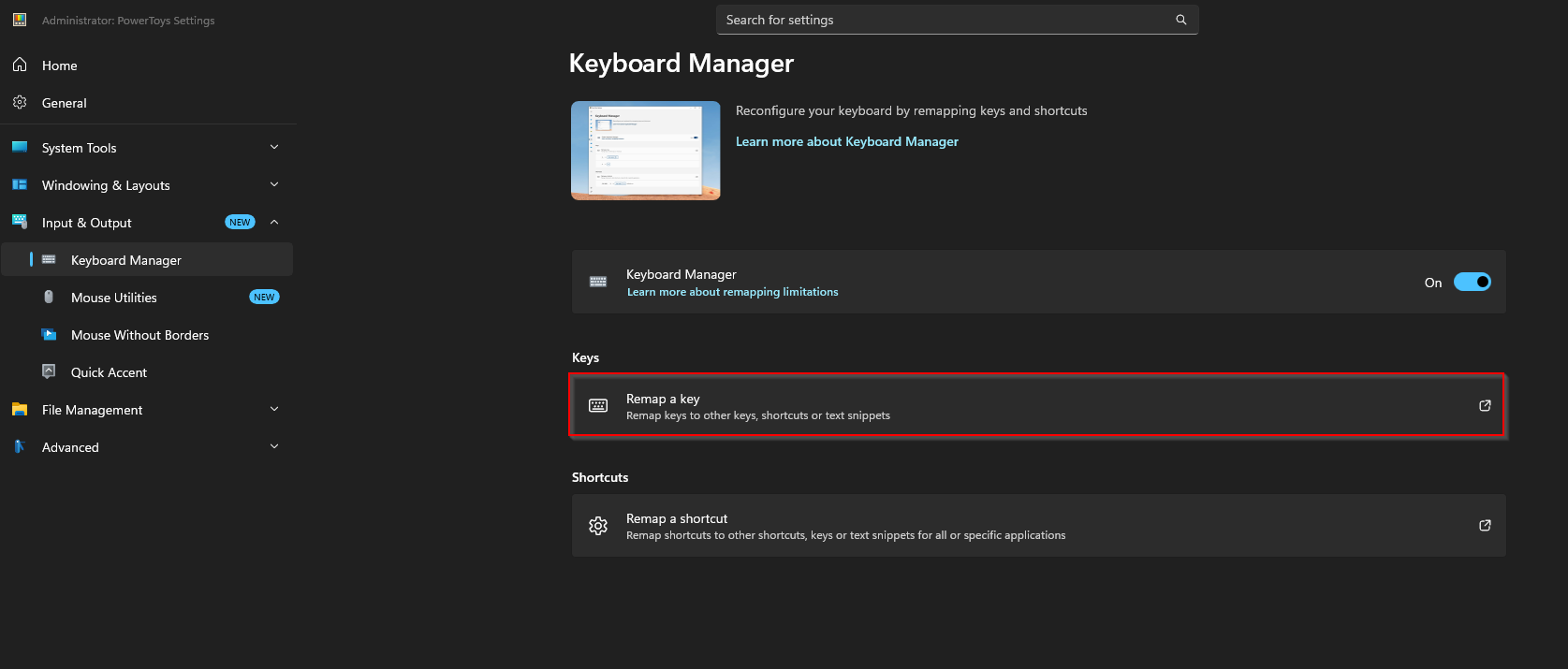
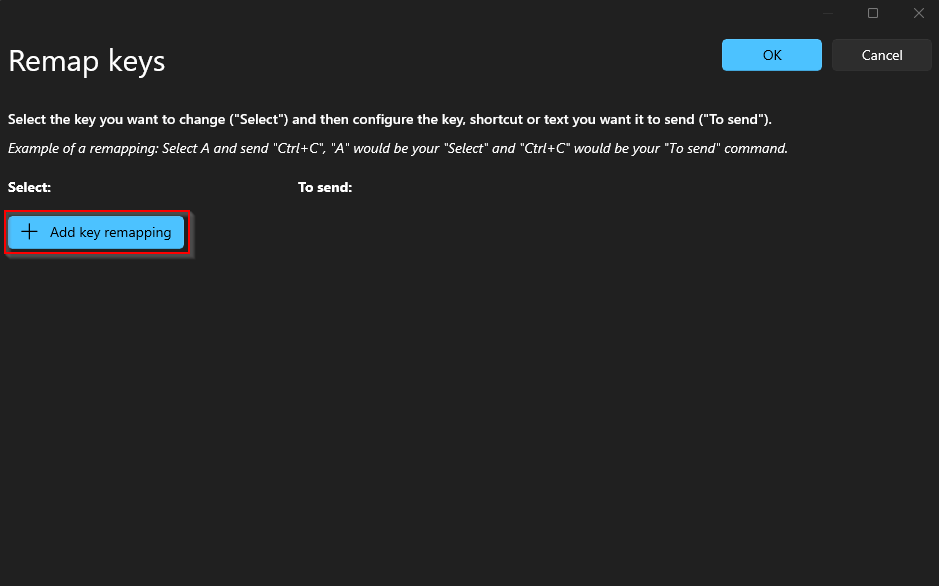
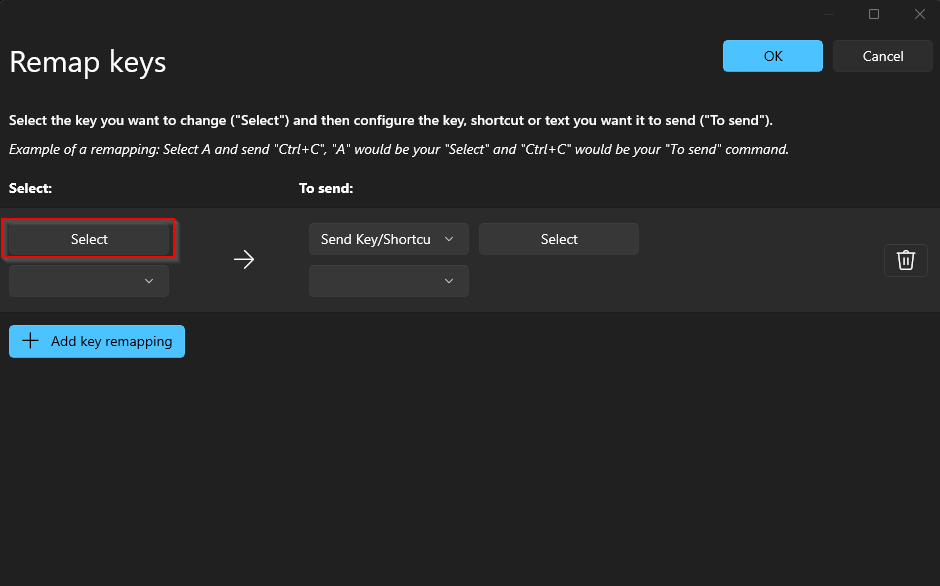
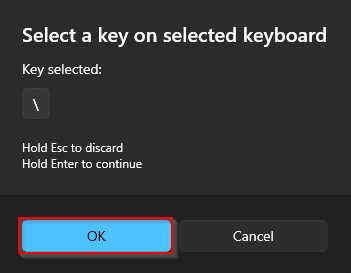
- Open Keyboard Manager and enable it. Choose Remap a key, then add a mapping. Use Select to capture a key you do not normally need.
3. Map it to Insert
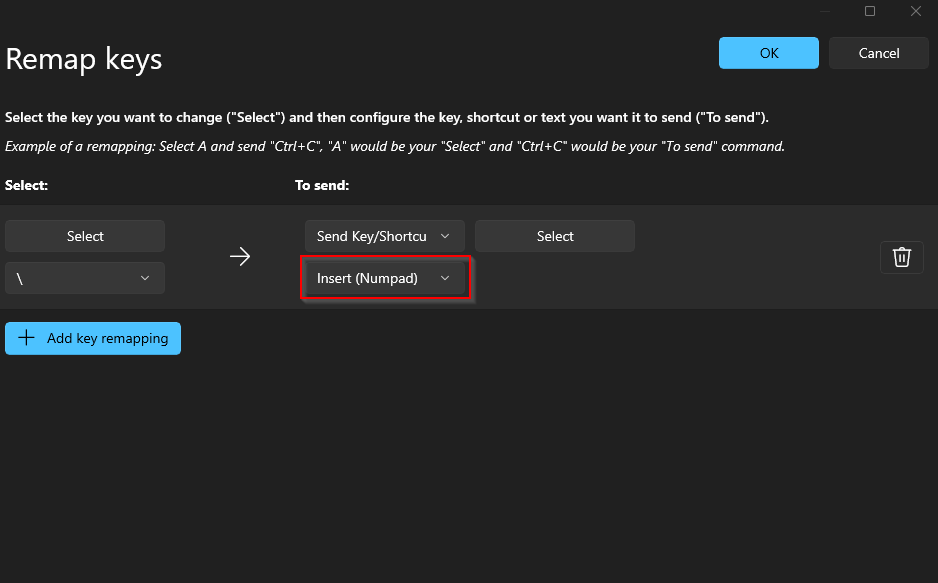
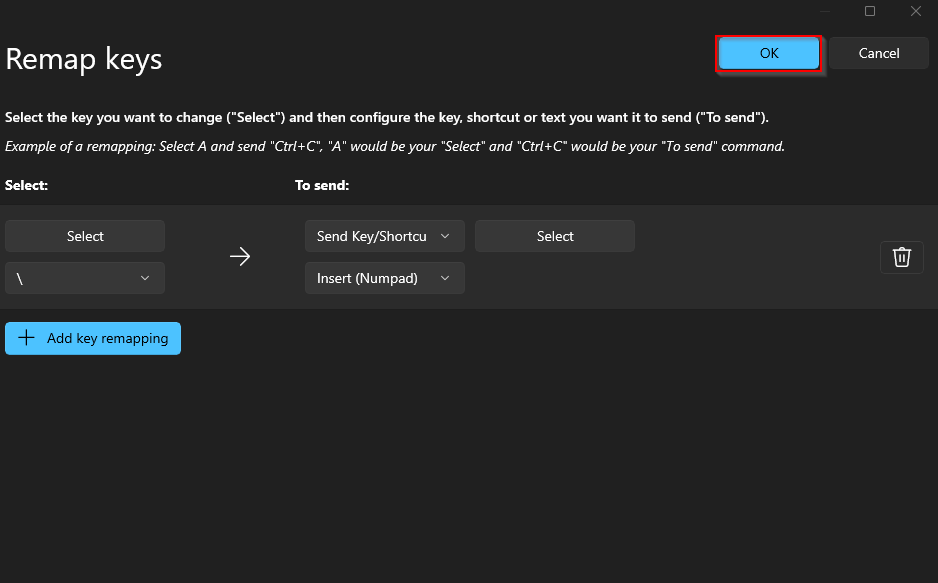
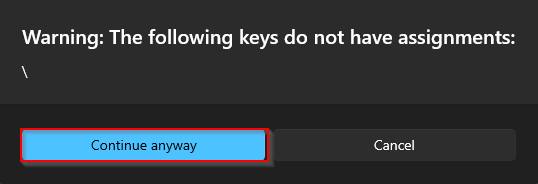
- Set the destination to Insert and save the mapping. Review the confirmation if the original key becomes unassigned.
4. Test and restore
- Keep PowerToys running and press the replacement key when the product is ready. Delete the mapping in Keyboard Manager whenever you want the original key back.
