Anti-Virus Setup
Find Windows security settings and resolve product setup conflicts.
Before you start
Changing security settings reduces protection. Confirm the requirements for your exact product and keep your recovery key available before changing firmware settings.
1. Virus & threat protection
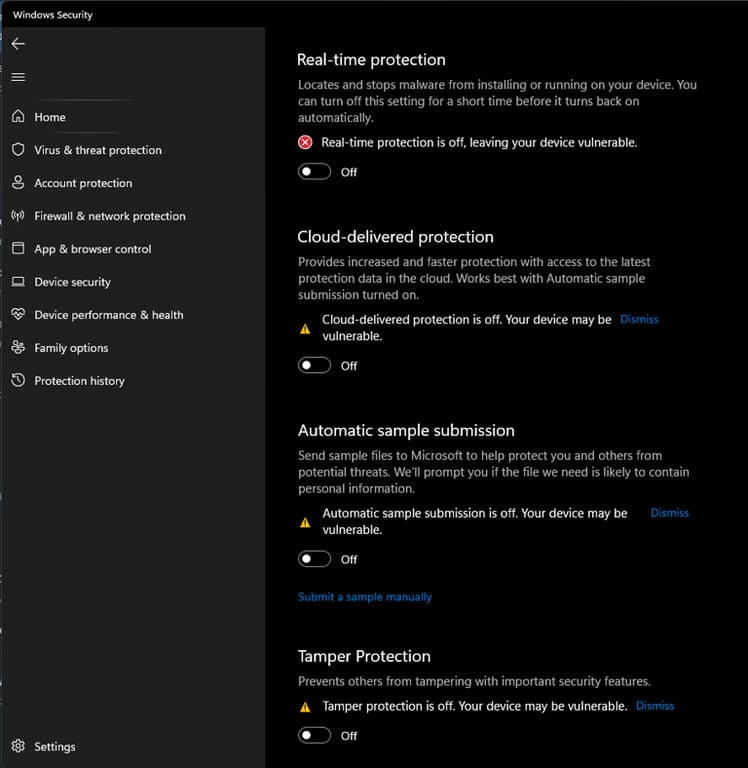
- Open Windows Security → Virus & threat protection → Manage settings. Check Protection history for the exact file or component that was blocked.
- If your product requires a temporary real-time protection change, use this panel during setup and restore protection afterward. Windows can re-enable it after a restart.
2. Firewall and exploit protection
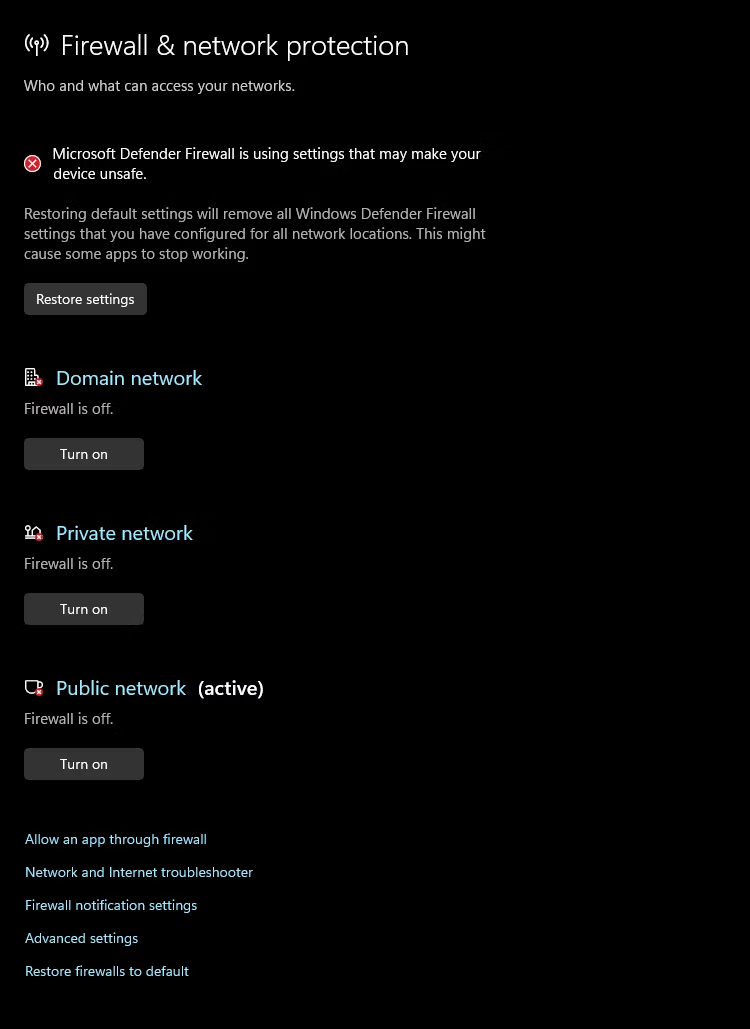
- Firewall & network protection shows Domain, Private and Public network profiles. Identify the relevant blocked connection before changing its settings.
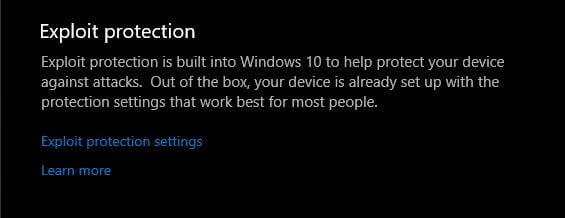
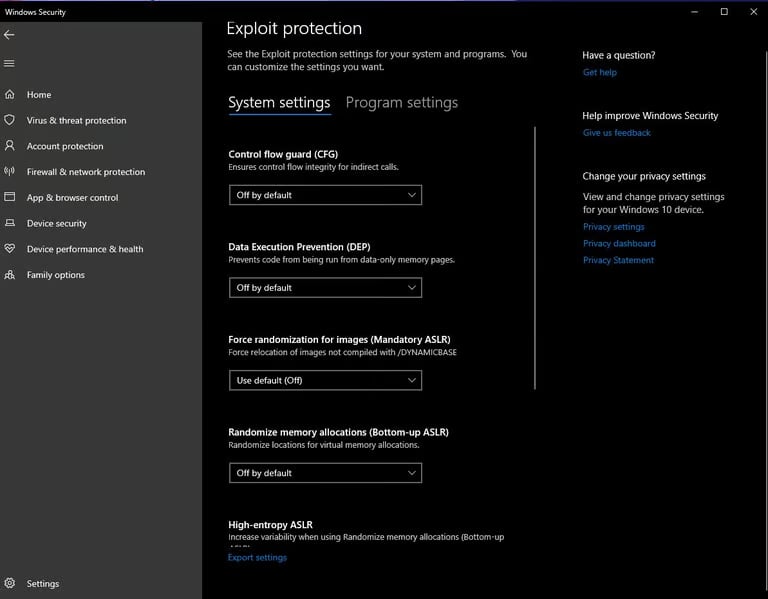
- App & browser control → Exploit protection settings contains system and per-program controls. Apply only the settings required for your specific product.
3. Core isolation
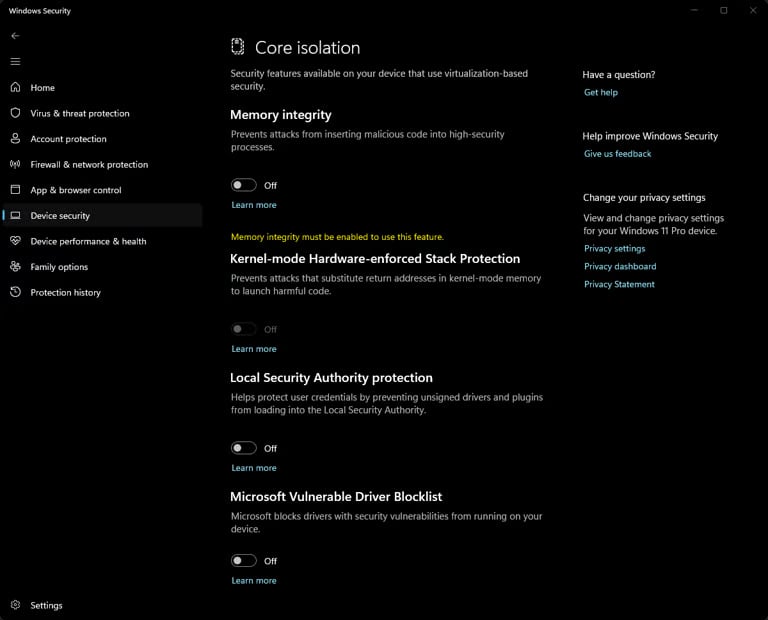
- Open Device security → Core isolation details. Compare the settings with your product requirements; restart if Windows requests it.
4. Secure Boot
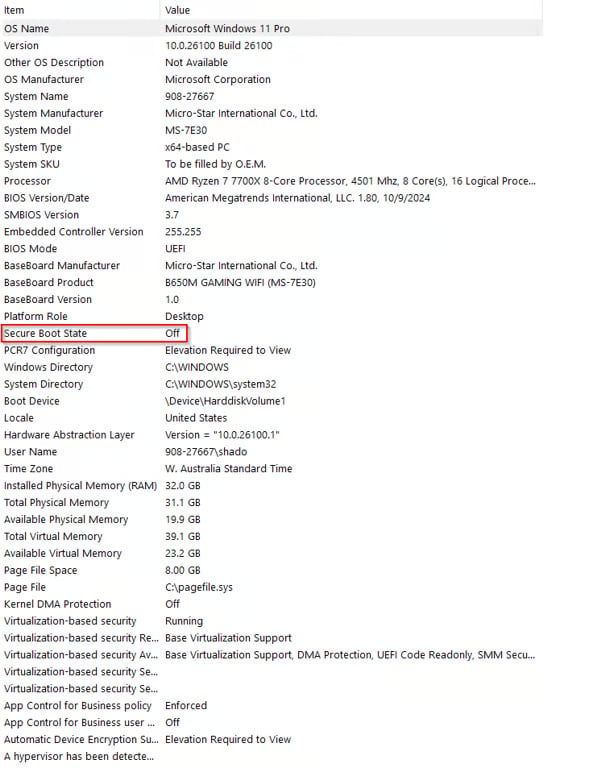
- Press Windows + R, enter msinfo32 and check Secure Boot State. Only change it when your product requires it. Firmware menus differ by motherboard.
5. Conflicting clients
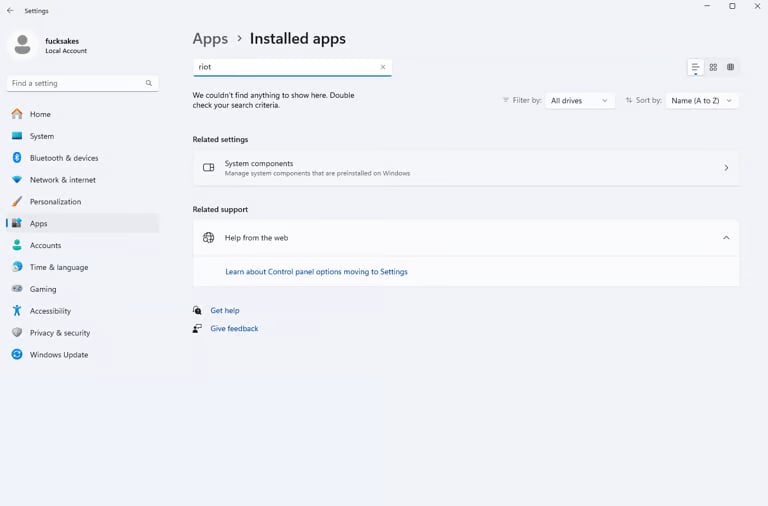
- Use Settings → Apps → Installed apps to find FACEIT, Riot or Vanguard if your product reports a conflict. Uninstall the identified conflict and restart before retrying.