Ancient — ARC Raiders
Set up Ancient — ARC Raiders and find help with launch issues.
1. Before launching
- Check the current product status and requirements. Close the game before opening your loader.
- Get the matching loader from your Bear Cheats order or Downloads. Extract the archive into a local folder before running it.
2. Activate your license
- Use the license key supplied with your order to sign in. If the loader updates and closes, reopen it from the same folder.
3. Start the product
- Start Medal or Discord with its overlay enabled. Use borderless display mode in the game.
- Select Load. Once loading finishes, start the game and reach its main menu.
- Allow up to two minutes for initialization, then press Insert to show or hide the menu.
4. If something goes wrong
- Keep the exact error message and contact support with your product and Windows version. Never post your license key publicly.
Troubleshooting
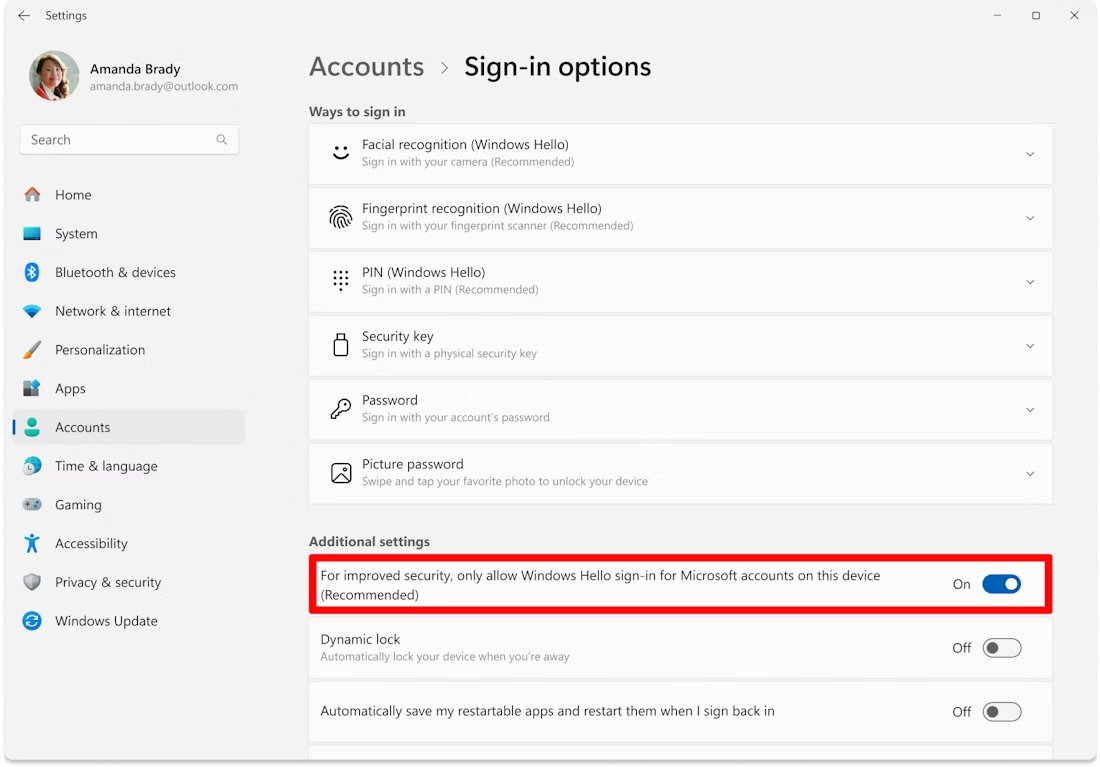
PIN is set / Windows sign-in error
- Confirm that you know your Windows account password before removing a PIN.
- Open Settings → Accounts → Sign-in options. Turn off the setting that allows only Windows Hello sign-in, then remove the PIN under PIN (Windows Hello).
- If sign-in stops working after a restart, use the PIN / sign-in recovery guide below.
Hyper-V cannot be disabled
- Check the CPU-specific requirements on your product first. Ancient ARC Raiders requires different Hyper-V settings for Intel and AMD; do not apply the AMD setting to Intel.
- If your product requires Hyper-V off, open Turn Windows features on or off, clear Hyper-V and Virtual Machine Platform, then restart. This also affects software that relies on virtualization.
- If the loader still reports the error, send support your Windows version and CPU model so they can provide the correct product-specific fix.
Failed to allocate / map memory
- Restart the PC and retry using a fully extracted loader in a local folder, outside OneDrive or another cloud-synced directory.
- In Task Manager → Startup apps, disable unnecessary third-party startup apps and restart again.
- Use Microsoft Autoruns to inspect leftover third-party startup entries if the issue persists. Leave Windows and unfamiliar driver entries alone; send support the exact memory error.
System file repair / DISM errors
- Open Command Prompt as administrator. Run each command separately and wait for it to finish.
- DISM /Online /Cleanup-Image /CheckHealth
- DISM /Online /Cleanup-Image /ScanHealth
- DISM /Online /Cleanup-Image /RestoreHealth
- sfc /scannow
- Restart Windows after the scan completes. Keep any error code if Windows cannot repair the files.
Missing Visual C++ runtime / crt lib
Install or repair Microsoft Visual C++ Redistributable (x64), then restart Windows. Use the runtime downloads below. If your order includes a runtime bundle, extract it before running its installer.
NVIDIA / GeForce overlay not detected
Turn NVIDIA Overlay off, then on again. Retry the loader after the overlay initializes.
SteelSeries Sonar overlay not detected
Press your assigned Sonar volume shortcut before choosing Load.
Flickering menu / black screen
In SteelSeries GG, open Settings → Moments → Capture and sound. Turn off Allow Moments to capture while gaming, then retry.
Menu key does not respond
Retry the loading sequence. If the key still has no effect, run the required overlay as administrator.
No menu / loader closes immediately
Install or repair Microsoft Visual C++ Redistributable (x64), then restart Windows. Use the runtime downloads below. If your order includes a runtime bundle, extract it before running its installer.
0x296
Restart the loading sequence and retry injection.
Unknown network error
Check your internet connection and retry. If a VPN is active, test with it disconnected.
AES instruction set is not supported
The processor lacks a required CPU feature. A loader reinstall cannot add it; contact support to check hardware compatibility.
Unsupported firmware
The documented configuration requires a GPT system disk and UEFI boot. Check System Information and Disk Management first. Changing disk layout or boot mode requires a backup and a compatible system; ask support before converting.
Intel Rapid Storage Technology / RAID / virtual disk
The supplier lists Intel RST, RAID and virtual disks as incompatible configurations. Do not change the storage controller mode on an installed system without a migration plan; it can stop Windows from booting. Send support your storage configuration.
VMX / SVM is not supported
Check that Intel VT-x or AMD SVM is enabled in firmware. Then compare Hyper-V settings with the CPU-specific requirements on the product page. Do not delete Windows hypervisor files to resolve this error.
Please uninstall Vanguard / FACEIT first
Check whether either anti-cheat is installed and confirm that hardware virtualization is enabled. Contact support if the error persists after resolving the conflicting driver.
Failed to load dependencies
Check Protection History for a blocked loader or dependency and inspect unnecessary third-party startup apps. Ask support to identify the blocked component before making security changes.
CRD failed / failed to initialize render
The supplier associates this with an unsupported graphics adapter. On a laptop, confirm the game uses the supported dedicated GPU; send support both GPU models before changing firmware graphics settings.
Incorrect HWID
Contact support with your hardware configuration and any recent hardware or Windows changes so they can check the license binding. Do not reinstall Windows solely to troubleshoot this message.
