Exodus — R6S
Set up Exodus — R6S and find help with launch issues.
1. Before launching
- Check the current product status and requirements. Close the game before opening your loader.
- Get the matching loader from your Bear Cheats order or Downloads. Extract the archive into a local folder before running it.
2. Activate your license
- Use the license key supplied with your order to sign in. If the loader updates and closes, reopen it from the same folder.
3. Start the product
- Start Medal or Discord with its overlay enabled. Use borderless display mode in the game.
- Select Load. Once loading finishes, start the game and reach its main menu.
- Allow up to two minutes for initialization, then press Insert to show or hide the menu.
4. If something goes wrong
- Keep the exact error message and contact support with your product and Windows version. Never post your license key publicly.
Troubleshooting
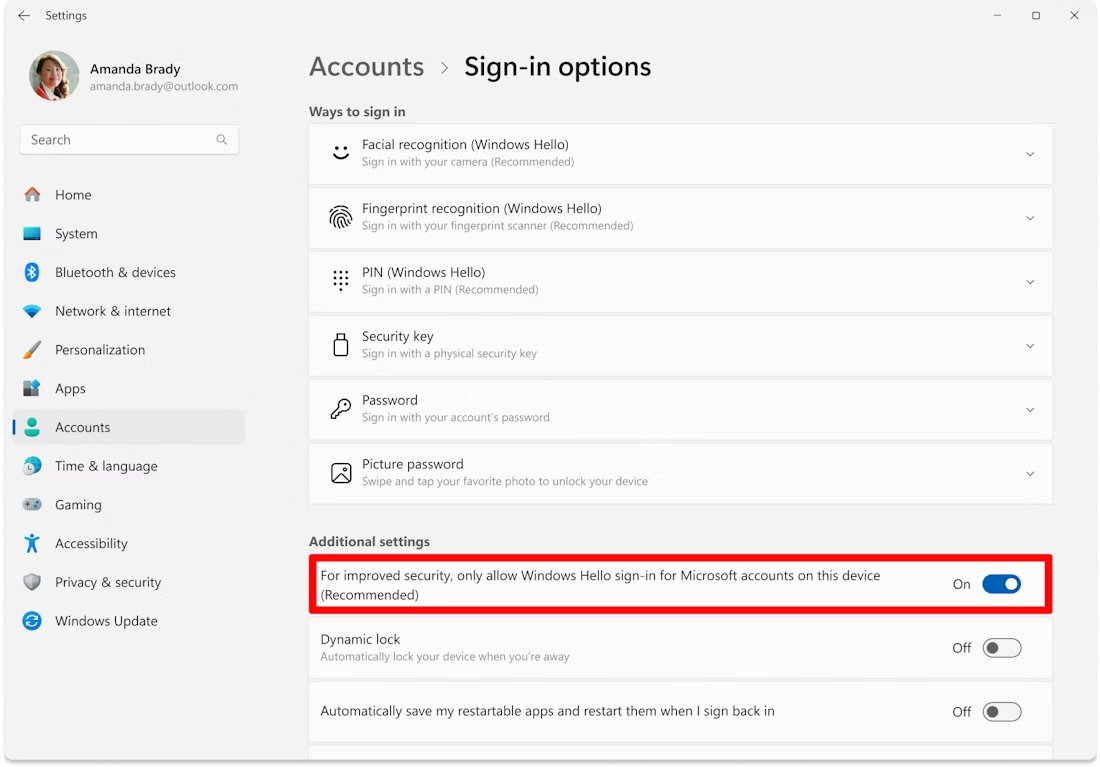
PIN is set / Windows sign-in error
- Confirm that you know your Windows account password before removing a PIN.
- Open Settings → Accounts → Sign-in options. Turn off the setting that allows only Windows Hello sign-in, then remove the PIN under PIN (Windows Hello).
- If sign-in stops working after a restart, use the PIN / sign-in recovery guide below.
Hyper-V cannot be disabled
- Check the CPU-specific requirements on your product first. Ancient ARC Raiders requires different Hyper-V settings for Intel and AMD; do not apply the AMD setting to Intel.
- If your product requires Hyper-V off, open Turn Windows features on or off, clear Hyper-V and Virtual Machine Platform, then restart. This also affects software that relies on virtualization.
- If the loader still reports the error, send support your Windows version and CPU model so they can provide the correct product-specific fix.
Failed to allocate / map memory
- Restart the PC and retry using a fully extracted loader in a local folder, outside OneDrive or another cloud-synced directory.
- In Task Manager → Startup apps, disable unnecessary third-party startup apps and restart again.
- Use Microsoft Autoruns to inspect leftover third-party startup entries if the issue persists. Leave Windows and unfamiliar driver entries alone; send support the exact memory error.
System file repair / DISM errors
- Open Command Prompt as administrator. Run each command separately and wait for it to finish.
- DISM /Online /Cleanup-Image /CheckHealth
- DISM /Online /Cleanup-Image /ScanHealth
- DISM /Online /Cleanup-Image /RestoreHealth
- sfc /scannow
- Restart Windows after the scan completes. Keep any error code if Windows cannot repair the files.
Missing Visual C++ runtime / crt lib
Install or repair Microsoft Visual C++ Redistributable (x64), then restart Windows. Use the runtime downloads below. If your order includes a runtime bundle, extract it before running its installer.
